
Session Tracking Activity (1 of 3):
Record Your Income and Deposits
Questions? Please email.
A general MoneySlinger introduction can be found here.
After you’ve estimated and balanced your budget on the Budget Worksheet, it’s time to put your plan into action. It’s assumed that you’ve determined your two Semi-Monthly Session dates and set the Session (1, 2 or none) for each item on your Budget Worksheet. It’s not critical that it’s perfect at this point and can be adjusted as you use the system.
You’ll now be using the Green, Blue and Gold Tracking Worksheets to manage and track your actual incoming and outgoing cash flows during these two monthly Sessions during the year.
The first thing you do during a Session is record your income and deposits on the Green Tracking Worksheet. MoneySlinger will compare your actual figures against your budgeted figures on the far right side. Note that the Red Account is not tracked beyond the lump sum deposit you see on this Worksheet, as explained on the Budget Worksheet Quick Reference Guide.
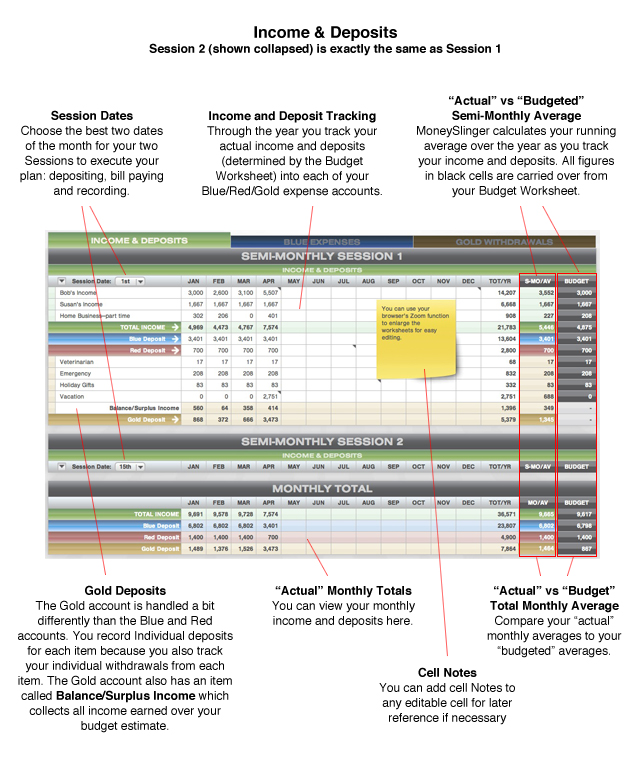
Note that this Worksheet has two Session modules: one for each Session of the month. Understand that each module represents a half month and each Session module is identical. You simply repeat the exact same deposit and tracking activities for each Session. The total for these two Sessions are shown below in the Monthly Total.
Note the Green, Blue, Red and Gold cells with the white arrows on the left. These correspond with the same arrows on the Budget Worksheet (which are deposit amounts). These deposit amounts can also be seen on the far right Budget column for each of these items. Also note that the Gold items are listed separately here because you’ll be tracking your deposits, as well as withdrawals, for each Gold item.
The Blue Account is ultimately tracked as one big average monthly expense, but individual payments for each item in the account are tracked and averaged in the Fixed Blue Tracking Worksheet. But you’ll find after a few months that the individual payments mean less and less as you begin to rely on this single Blue deposit as one, fixed monthly expense.
Comparing Actual vs Budget
Unlike traditional money management systems, MoneySlinger relies heavily on running averages. The system continually tracks and calculates your “average per month” income and expenses during the entire year. The far right side of your Worksheet is showing your “Budgeted Semi-Monthly Average” (BUDGETED) which is carried over from your Budget Worksheet, and just to the left of that column is your current “Actual Semi-Monthly Average” (S-MO/AV).
Note that when you’re working with averages and combine them with a dedicated bank account, that you can safely be over or under a few individual deposit figures. Because as a whole, the Monthly Total module on the bottom is telling you that you’re still in the positive overall…or on average.
Making Deposits
Enter the figures for the current Session on the Budget Worksheet. In the Demo Budget example the next Session would be April 15th.
Note that if you didn’t earn any income for any one item you need to enter a “0” (it will keep accurate the average calculation result).
If you earned income over the total of your budgeted Blue, Red and Gold deposits, that extra income will show up in a separate line item called “Balance/Surplus Income” in the Gold Account…and be added on top of your normal, budgeted Gold deposit.
If you enter income that’s under your budgeted amount for any Session, and you record all your normal deposit amounts, the “Balance/Surplus Income” item may show a negative figure in red. In this case, you’ll need to reduce your deposits in the Red and Gold accounts. You should manipulate the deposit figures in these two accounts until your Surplus equals “0”. Reducing the amount of your Blue deposit isn’t an option here and this should not be reduced as you have fixed expenses you need to make good on.
After you’ve logged your deposit amounts into each account, you need to physically make the deposits. If you’re paid via direct deposit, you want your Blue Account to be the direct deposit account. If you’re in this situation you would “leave” your deposit amount in the Blue Account, and make your other deposits as calculated into the other accounts. It’s quite easy and routine if you have all your accounts in one bank.
When you’re done, move on to the Blue Tracking Worksheet.